How to exit an SSH session
Type exit and press Enter — that closes the SSH session and returns you to your local shell. logout does the same, and so does pressing Ctrl‑D on an empty line. That's the normal way. The rest of this guide covers the cases where the session is frozen and a plain exit doesn't respond — there's a hidden escape sequence for that.
The normal ways
| What you do | Result |
|---|---|
exit + Enter | Closes the session cleanly |
logout + Enter | Same — closes a login shell |
| Ctrl‑D (empty line) | Sends end-of-input, closes the shell |
All three end the remote shell and drop you back to your local terminal. If you opened several nested shells (e.g. sudo su, then another SSH hop), each exit backs out one level — you may need a few.
When the session is frozen
Sometimes the connection hangs — the network dropped, the server is unresponsive — and typing exit does nothing because your keystrokes aren't reaching the server. SSH has a built-in escape sequence for exactly this. On a new line, type:
~.That's a tilde followed by a period (~.), typed at the start of a line. It tells your local SSH client to terminate the connection immediately, without needing the frozen server to cooperate. It's the reliable way out of a hung session.
The tilde is SSH's escape character; a few other sequences exist (~? lists them, ~Ctrl-Z backgrounds the session), but ~. is the one to remember.
Don't want to lose your work?
Exiting closes the shell and kills whatever was running in it. If you have a long job going and just want to disconnect without stopping it, don't exit — detach. Run the job inside tmux or screen and you can leave the session while the work continues; reattach later. See keep a process running after you disconnect.
On a phone
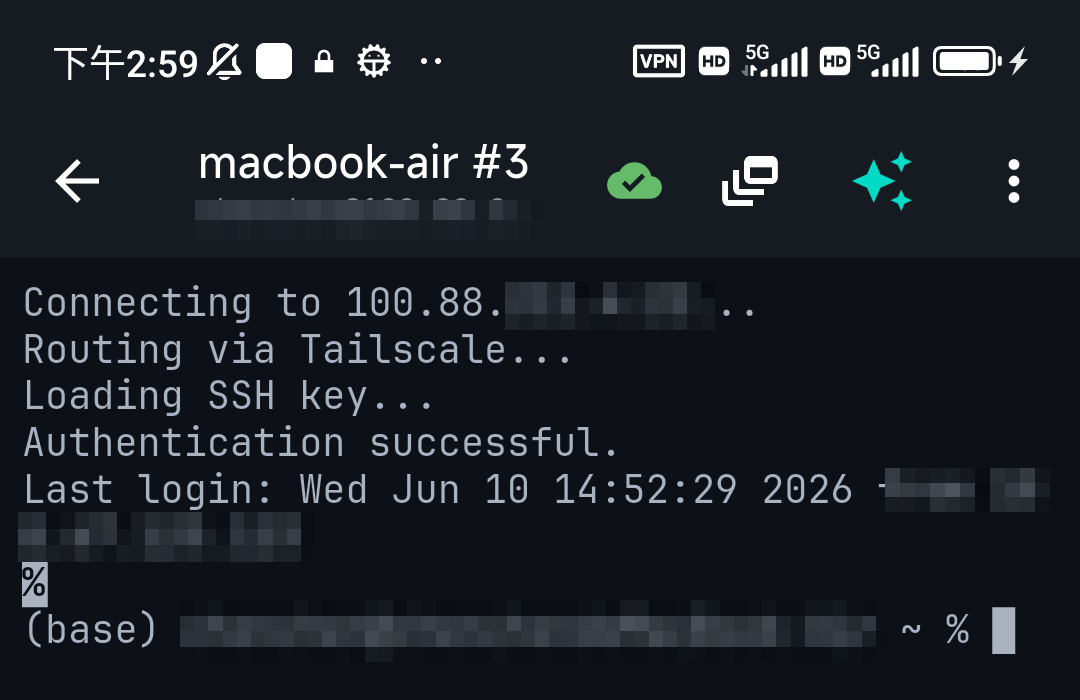
In a mobile SSH client, exit and Ctrl‑D work the same — the trick is finding the keys. Touch keyboards hide Ctrl, so a good client puts Esc/Tab/Ctrl on a shortcut bar above the keyboard (Ctrl then D for Ctrl‑D). For a frozen session, type ~. on a new line, or just close the session tab in the app. TermAI keeps the modifier keys one tap away and lets you close or switch sessions without fighting the keyboard. See SSH keyboard shortcuts on a phone.
FAQ
How do I exit an SSH session?
Type exit (or logout) and press Enter, or press Ctrl‑D on an empty line. Any of these closes the remote shell and returns you to your local terminal.
How do I exit a frozen or hung SSH session?
On a new line type ~. (tilde then period). This tells your local SSH client to drop the connection without waiting on the unresponsive server.
What's the difference between exit and logout?
For an SSH login shell they do the same thing. logout only works in a login shell; exit works in any shell.
How do I disconnect without stopping my running command?
Don't exit — run the command in tmux or screen and detach, so it keeps running after you disconnect.
Quick Facts
- Normal exit:
exit,logout, or Ctrl‑D on an empty line - Frozen session: type
~.at the start of a new line (SSH escape sequence) - Nested shells: each
exitbacks out one level - Keep work running: detach from tmux/screen instead of exiting
- Mobile: Ctrl is on the shortcut bar; or close the session tab
Free on iOS and Android. 5 AI requests/day on the free tier, plus unlimited SSH/SFTP and built-in Tailscale.