The short answer
An iPad with a keyboard is close to a laptop, so the "best" SSH client for iPad depends on how far you push it. For a fast, keyboard-first terminal that treats the iPad as a dev machine, Blink Shell is the long-standing favorite. For an AI assistant inside the terminal plus built-in Tailscale — and the same app on your phone — TermAI stands out. For desktop sync, Termius. For Panic-grade native polish, Prompt. For SFTP inside the iPadOS Files app, Secure ShellFish. For a fully free native option with no account, Easy SSH. Here's an honest comparison for iPadOS in 2026 — based on running each with a Magic Keyboard on an iPad.
iPadOS still ships no terminal of its own — not in iPadOS 26, and not in the iPadOS 27 announced at WWDC in June 2026 — so an SSH app is the only way to get a shell on an iPad at all. The good news: several have a genuinely usable free tier, so you can try before you pay.
Picks at a glance
- Best overall for most iPad users: TermAI — a free tier that actually connects, AI help grounded in the live session, built-in Tailscale, same app on your phone.
- Best pure iPad terminal: Blink Shell — fastest, most keyboard-tuned, mosh.
- Best if the iPad is one screen among several: Termius — hosts and keys synced to a desktop app.
- Best native polish, cheapest paid option: Prompt (Panic) — one subscription covers iPad, iPhone, Mac and Vision Pro.
- Best for files rather than shell: Secure ShellFish — servers mounted in the Files app, tmux-aware.
- Best fully free, no account, no paywall: Easy SSH.
- A shell running on the iPad itself: a-Shell or iSH — free, but not SSH clients.
Naming note: "iPad SSH client", "SSH client for iPad", "SSH app for iPad", "best terminal for iPad" and "best terminal client for iPadOS" are all the same search, and this page covers every one of them. Prices below were checked on the US App Store in August 2026; they vary by region and by Apple's currency tiers, so confirm on the listing before you subscribe.
iPad SSH clients at a glance
| App | Price (Aug 2026) | Platforms | Free tier | AI | Stands out on iPad for |
|---|---|---|---|---|---|
| Blink Shell | ~$19.99/yr (Blink+), 14-day trial | iPadOS + iOS | Trial only | No | Speed, mosh, hardware-keyboard handling |
| TermAI | Free; Pro $2.99/mo | iPadOS + iOS + Android | Yes | Built in | AI in the session, built-in Tailscale, phone parity |
| Termius | Free Starter; Pro ~$10/user/mo billed yearly | iPadOS + iOS + Android + Mac/Win/Linux | Yes (no sync) | Autocomplete; more in paid tiers | Sync with a desktop app |
| Prompt (Panic) | ~$9.99/yr since Prompt 3.5, 7-day trial | iPadOS + iOS + macOS + visionOS | Trial only | No | Native polish, Mosh + Eternal Terminal, hardware keys |
| Secure ShellFish | Free tier; paid unlock (sub or one-time) | iPadOS + iOS + macOS | Yes | No | Servers in the Files app, tmux, post-quantum KEX |
| Easy SSH | Free (all features) | iPadOS 17+ / iOS 17+ / macOS 14+ | Yes (fully) | No | Free and native, no account |
Two structural things to notice before the details. First, only TermAI and Termius give you the same client on an iPad and a non-Apple phone — everything else here is Apple-only. Second, only two apps let you keep connecting indefinitely without paying: TermAI (free tier) and Easy SSH (free outright); Blink and Prompt are trials, and Termius Starter works but never syncs.
Is there a good free SSH client for iPad?
Yes, but "free" means four different things here, and the difference matters more than the price tag:
| App | What free gets you on iPad | The catch |
|---|---|---|
| Easy SSH | Everything: hosts, on-device key generation, multi-session terminal | No AI, no built-in VPN, no sync; needs iPadOS 17 or later |
| TermAI | Unlimited SSH and SFTP sessions, built-in Tailscale, snippets, 5 AI requests/day | Cloud sync, monitoring and unlimited AI are Pro ($2.99/mo) |
| Termius Starter | SSH, Mosh, Telnet, SFTP and port forwarding with a local vault; commercial use allowed | Hosts and keys live on that one iPad — sync and snippets need Pro |
| Secure ShellFish | Configure servers and use the terminal and Files integration | The paid unlock is what removes the free-tier limits (server count, Files uploads) |
| Blink Shell | 14-day trial of everything | Subscription after that (Blink Classic is a grandfathered tier for old buyers, not a new-user free plan) |
| Prompt | 7-day trial | Subscription after that |
| iSH / a-Shell | Free forever, genuinely | Local shells, not remote SSH clients — see below |
If free is a hard requirement: Easy SSH for zero limits and no account, TermAI for a free tier that still includes AI and Tailscale, Termius Starter if you expect to add a desktop later. More detail in the best free SSH client guide.
Blink Shell — the iPad power-user pick
If you use an iPad with a hardware keyboard as a real working machine, Blink is hard to beat: fast, keyboard-first, and with mosh so sessions survive Wi-Fi drops, IP changes and the cover closing. Its split-screen behaviour and keyboard handling on iPadOS are the best in this list — you can remap keys, live in an SSH config file rather than a form, and drive the whole app without touching the screen. It's the app people mean when they say the iPad can be a dev machine.
Practical notes for 2026: the App Store listing is "Blink Shell, Build & Code", which bundles a separate cloud dev-runtime product (Blink Build) on its own plan — you don't need Build to use Blink as an SSH/mosh terminal, but you're reading two products on one pricing screen. Blink+ is about $19.99/yr after a 14-day trial, and the current build needs a recent iPadOS (17.6 or later at the time of writing). Blink Classic exists but is a grandfathered tier for people who bought the old v14 app, not a free route in today.
Best for: iPad-as-laptop, heavy keyboard use, mosh.
Trade-off: no AI; Apple-only; subscription; steepest first hour. See Blink vs Termius and Blink Shell alternatives.
TermAI — AI help, on iPad and your phone
TermAI runs on iPad (it lays the tabs out along the side on a tablet) and adds the thing the others don't: an AI assistant inside the terminal. Open it in a session and it reads the box in real time — the OS and distribution, the current disk, memory and CPU load, the last screen of output, and your recent commands — so it suggests systemctl on Linux (not a Mac) and can tell you "/var is 92% full" instead of making you go check. Destructive commands hit a confirmation first. It also has built-in Tailscale and a free tier (5 AI requests/day), and it's the same app on your iPhone or Android phone.
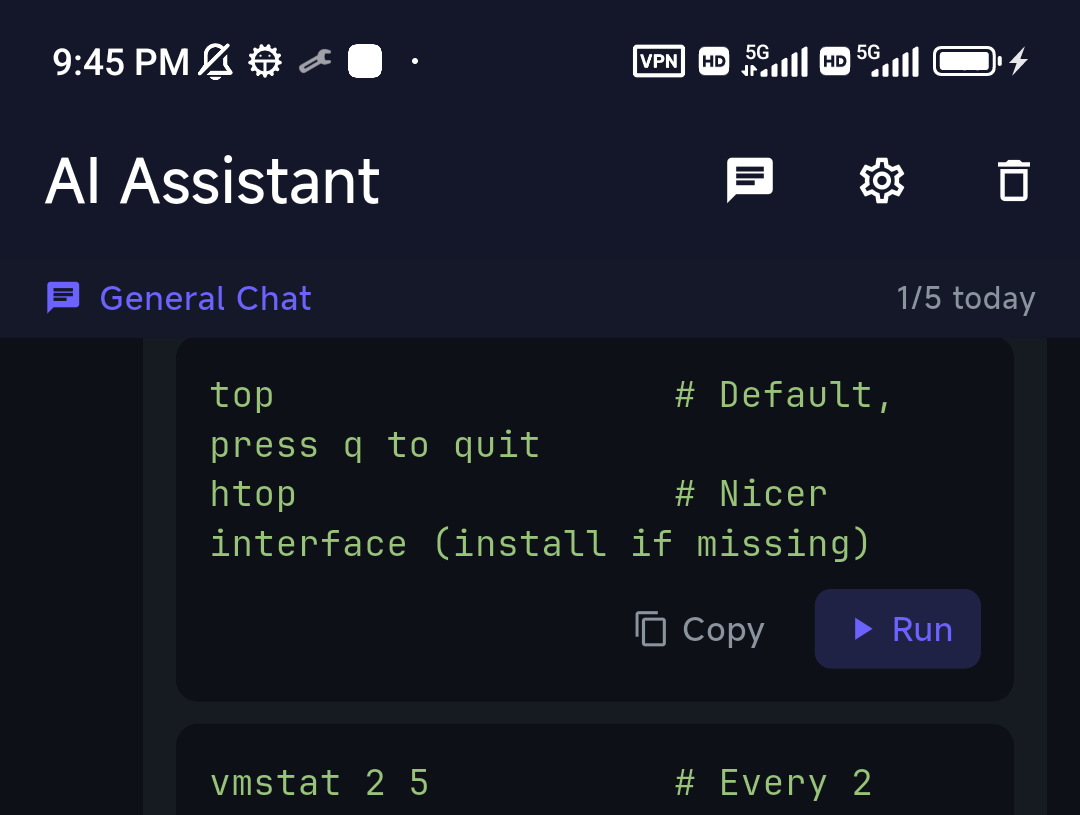
What "grounded in your session" means on an iPad
This is the part generic app lists skip. When you open the assistant from inside a live SSH session, it is handed the actual state of that box: the OS, which tools are installed (whether there is a docker or systemctl at all), disk / memory / CPU sampled at connect time, the last lines on screen, and your recent commands in that session. So it won't hand you brew install on Ubuntu. Open the AI tab standalone and it has none of that — you get generic commands and have to pick a session before Run will execute anything.
Safety is handled the boring, correct way: ordinary commands go to the terminal and run; commands judged high-risk pop a confirmation and are then typed into the input line without pressing Enter, so the last decision is a human one. On an iPad that matters more than on a phone, because a hardware keyboard makes it easy to fire commands quickly. The reasoning is written up in trusting AI shell suggestions.

Beyond the assistant, the parts you use daily on a tablet: multiple concurrent sessions in side tabs, a special-key row for when the keyboard is detached and you're holding the iPad, snippets you can pin, built-in SFTP with in-app editing, and auto-reconnect so closing the Magic Keyboard cover doesn't cost you the session. Host-key changes raise an explicit warning rather than failing silently — see host key verification.
Best for: command help, reaching private servers via Tailscale, and wanting the same client on a phone.
Trade-off: no desktop app; less keyboard-tuning than Blink. New here? Follow the visual getting-started guide.
Termius — best desktop + iPad sync
Termius syncs hosts, keys, and snippets across iPad, iPhone, Android and desktop. If your iPad is one screen among several, that sync is the entire draw. Its free Starter plan is more capable than people expect — SSH, Mosh, Telnet, SFTP and port forwarding with a local vault, and commercial use is permitted — but on the free plan your hosts and keys live on that one iPad, which is precisely the thing you would have wanted Termius for. Cloud sync, the cloud vault and automation sit behind Pro, around $10 per user per month billed annually (more month-to-month), making it the priciest option on this page.
Termius has been adding AI (autocomplete and text-to-command); which parts land in the free tier versus paid has shifted more than once, so check their pricing page rather than trusting any list — including this one — on that specific point.
Is there an official Termius app for iPad?
Yes. Termius ships a first-party universal iOS/iPadOS app on the App Store (published by Termius Corporation), and it runs natively on iPad with keyboard and trackpad support — there is no separate "iPad edition" to hunt for, and no need for a sideloaded build. If you're searching for the official iPad client, install it from the App Store or follow the link from termius.com; "Termius" APKs, mirrors or lookalike listings elsewhere are not official and should not be trusted with your SSH keys. Your Termius account signs in on the iPad the same way it does on desktop, but remember that sync itself is a Pro feature.
Best for: teams and anyone who wants one client across iPad and a laptop.
Trade-off: the features that justify it are paid. See Termius alternatives.
Secure ShellFish vs Termius on iPad
This is a common head-to-head, and the two apps are aimed at genuinely different jobs — the choice is less about quality than about which half of the work you do on the iPad.
| Secure ShellFish | Termius | |
|---|---|---|
| Core idea | Your servers as a location in the iPadOS Files app, plus a terminal | A synced connection manager, plus a terminal |
| Platforms | iPad, iPhone, Mac (Apple only) | iPad, iPhone, Android, macOS, Windows, Linux |
| Sync | Across your Apple devices; no Windows/Linux/Android | Cross-platform cloud sync — but Pro only |
| Pricing model | Free tier; paid unlock available as a one-time purchase or subscription | Subscription only (~$10/user/mo billed yearly for Pro) |
| Files / SFTP | Best in class: mount servers in Files, edit with any app (Textastic, Pages, etc.) | In-app SFTP browser; the full SFTP experience skews paid/desktop |
| tmux | tmux-aware sessions, so reattaching after a drop is clean | No tmux integration (Mosh instead, free tier included) |
| Notable extras | Post-quantum key exchange; Shortcuts and widget integration | Snippets, port forwarding, team vaults, AI autocomplete |
| AI | None | Autocomplete / text-to-command, mostly paid |
Pick Secure ShellFish if your iPad work is file-shaped: editing configs and code on a server with real iPad editors, moving assets around, and dipping into a shell. It is also the better value if you hate subscriptions, since a one-time unlock is on the table. Pick Termius if your work is fleet-shaped: dozens of hosts you also touch from a Windows or Linux desktop, shared with teammates. And if you want neither — an AI assistant with a free tier and built-in Tailscale — that's where TermAI sits between them. For a files-first deep dive see the best SFTP app for iOS and iPadOS.
Easy SSH, Prompt, and Secure ShellFish
Easy SSH (from Argsment) is a native client for iPhone, iPad and Mac that stays fully free — host management, on-device keys, and a multi-session terminal, with no account and no paywall. It needs iPadOS 17 or later. A strong pick if you want free and native on iPad and don't need AI, sync or a built-in VPN.
Prompt (Panic) is a clean, native iPadOS client with strong keyboard support, GPU-accelerated rendering, Mosh and Eternal Terminal, jump hosts, port forwarding, and — unusually for mobile — YubiKey and Secure Enclave authentication. Panic Sync keeps hosts consistent across devices. Note the 2026 change: with Prompt 3.5 the price came down to about $9.99/yr (from $19.99/yr, and Panic previously also sold a roughly $99 lifetime option), and one subscription covers iPad, iPhone, Mac and Vision Pro after a 7-day trial. That makes it the cheapest paid client here — worth knowing if an older guide told you Prompt was the expensive one.
Secure ShellFish mounts your servers into the iPad Files app over SFTP, has notably good tmux support, and ships post-quantum key exchange — rare on mobile. It pairs unusually well with iPadOS file workflows (open a server file straight into a text editor app, save, done). Detail above in Secure ShellFish vs Termius.
Others you'll bump into on the App Store
Search the store and you'll also see NeoServer, TermBean, iTerminal and a rotating cast of new entrants; the category has churned a lot since 2025. They're real apps, but we haven't run them against production servers long enough to rank them here, and we won't pretend otherwise. If you try one, apply the same three checks: does it store keys on-device, does it verify host keys on first connect, and does it survive being backgrounded.
How to SSH from an iPad (the two-minute version)
Plenty of people searching "SSH on iPad" or "SSH from iPad" don't want a comparison — they want the steps. Here they are; the flow is nearly identical in every app on this page.
- Install a client from the App Store — TermAI, Blink, Termius, Prompt or Easy SSH. iPadOS has no built-in terminal, so this step is not optional.
- Add a host: the server's IP or hostname, the port (22 unless you changed it), and the username (
root,ubuntu,pi,ec2-user— whatever your server uses). - Choose authentication. A password is fastest to test with; a key is what you should actually use. Paste an existing private key, import it from the Files app, or generate one on the iPad and add the public half to
~/.ssh/authorized_keyson the server. See creating an SSH key on iOS/iPadOS and keys vs passwords. - Connect and accept the host key the first time. That fingerprint prompt is the security model working — if it reappears unexpectedly later, stop and investigate.
- Attach the keyboard, or use the special-key row. With a Magic Keyboard you get real Esc, Tab, Ctrl and arrows; undocked, the on-screen key row is how you reach Ctrl-C and tab-completion.
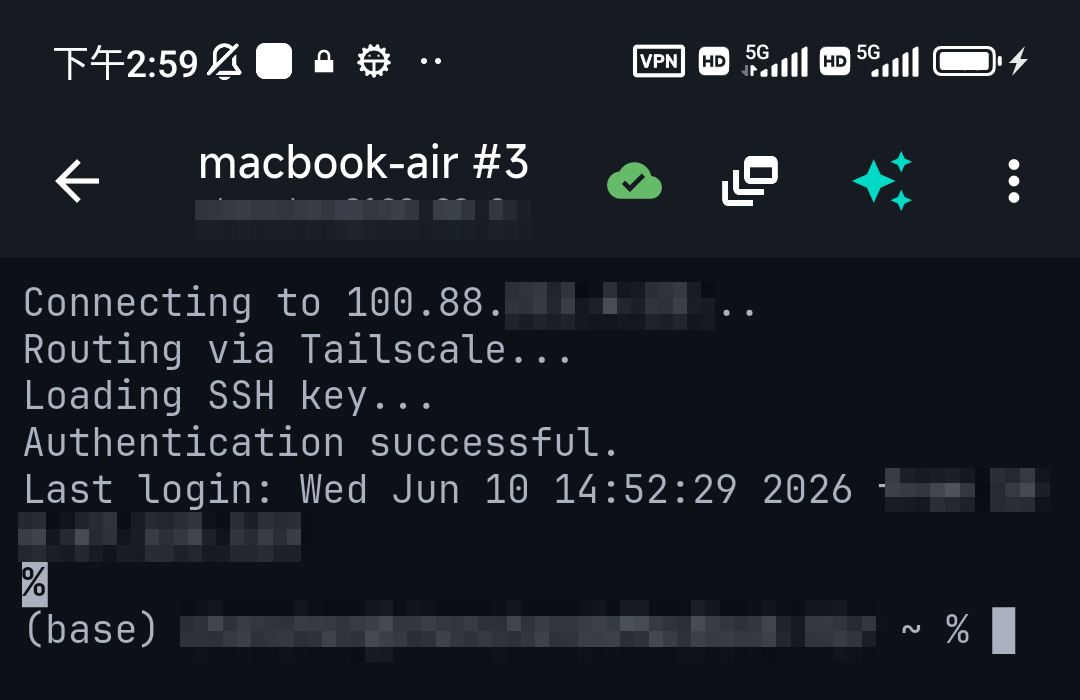
If it fails, the two overwhelmingly common causes are a wrong username and a firewall that never let you reach port 22 — see connection refused and the general SSH troubleshooting guide. The full walkthrough with screenshots is in how to SSH from an iPad.
"Best terminal for iPad" — two different questions
This search splits cleanly in two, and picking the wrong branch wastes an evening:
- You want to reach a server — a VPS, a Raspberry Pi, a work box, an EC2 instance. Then "terminal for iPad" means SSH client, and you want one from the table above. This is what most people mean, and it's also what "best terminal client for iPadOS" almost always means.
- You want a shell that runs on the iPad itself — Unix commands, Python, a scratchpad with no server involved. Then you want a-Shell or iSH, both free.
Either way you're installing something, because Apple ships no Terminal on iPadOS the way it does on macOS — that didn't change in iPadOS 26 and isn't part of iPadOS 27 either. The good SSH clients are also good terminal emulators: TermAI, Blink and Prompt all render full-screen TUIs like htop, vim and tmux correctly, which is the real test of a mobile terminal, and all three handle a 120-column window on a 13-inch iPad without wrapping artefacts.
A local terminal on iPad (iSH, a-Shell)
Some people searching "best terminal for iPad" don't want to reach a remote server at all — they want a terminal that runs on the iPad itself. Two free options: iSH (a lightweight emulator running Alpine Linux, with apk packages) and a-Shell (a local Unix toolset plus Python and JavaScript, running natively rather than emulated, so it's noticeably faster). They're handy for learning, quick scripting, and text munging on-device, and you can run the ssh command inside them — but there's no host list, no key manager and no tap-to-connect, and iSH's x86 emulation makes anything heavy slow. If your goal is to administer real servers, you still want an SSH client from the list above; reach for iSH or a-Shell only when you specifically want Linux tools running locally on the iPad. Note also that neither can give you a root shell over the whole iPad — iPadOS sandboxes them to their own container.
What makes iPad SSH different from iPhone
The iPad rewards a client that uses the extra screen and hardware. What to look for:
- Hardware keyboard. With a Magic Keyboard or Smart Keyboard you want real Esc, Ctrl, Tab and arrow keys — plus on-screen versions when the keyboard is detached. Blink is the most keyboard-tuned (remappable modifiers, config-file workflow); Prompt is close behind; TermAI shows the special-keys row so Ctrl+C and tab-completion work either way. Check specifically that Ctrl and Esc are usable, since some clients still swallow them.
- Windowed apps, Stage Manager and the menu bar. iPadOS 26 brought Mac-style windowing and a pull-down menu bar to far more iPads, which is the tablet's real edge over a phone: run the terminal beside Safari, a runbook or notes. Test that your client resizes cleanly rather than reflowing the scrollback into confetti — a terminal in a resizable window is a harsher test than full-screen.
- Trackpad and mouse. With a trackpad you can select text and scroll like a laptop; good clients support pointer selection, drag-select and scroll-wheel scrollback in the terminal.
- External display. Plugging an iPad into a monitor is common now; an SSH client that lets you run a big window at 200+ columns turns the iPad into a workable admin station. If you use one regularly, try each client's trial on the external screen before subscribing.
- Files app + SFTP. On iPadOS the Files app is central — Secure ShellFish mounts servers there, and TermAI and Termius have built-in SFTP for moving files.
- Staying connected. iPads suspend background apps aggressively, and closing the keyboard cover sleeps the device. mosh (Blink, Prompt) or a keep-alive with auto-reconnect (TermAI) means you don't lose the session. iPadOS 26's updated background-task handling is aimed at long uploads and exports surfaced in Live Activities — it does not exempt an SSH session from suspension, so for anything long-running the durable answer is still server-side
tmuxorscreen. - Keyboard shortcuts for the app itself. New tab, switch session, split pane — on a tablet you want these bound to Cmd chords, not buried in a menu.
If you also carry a phone, note that only TermAI and Termius give you the same client on both; see the best SSH client for iPhone, or the best SSH app for Android if your phone isn't an iPhone.
Edge cases other "best SSH client for iPad" lists skip
- SSH to your own Mac from the iPad. Enable Remote Login in System Settings → General → Sharing on the Mac, then connect to its
.localname over the same Wi-Fi. This is the single most common first use of an iPad SSH client, and it needs no port forwarding at all. - Home lab or Raspberry Pi behind CGNAT. Many home ISPs and every mobile network give you no inbound path, so port forwarding simply won't work. A mesh VPN (Tailscale) or a reverse tunnel is the fix, not a different app — TermAI embeds Tailscale so tailnet devices appear in the host list with nothing else installed. See Tailscale on iOS and iPadOS.
- Cellular iPads. An LTE/5G iPad changes IP when it hands off between Wi-Fi and cellular, which kills a plain SSH session. mosh survives it by design; auto-reconnect papers over it; a stable tailnet address avoids most of it. Background: mosh vs SSH.
- Networks that block port 22. Hotel, café and campus Wi-Fi often allow only 80/443. If you administer the server, having
sshdalso listen on 443 is the standard workaround; if you don't, tether to cellular. - Jump hosts and bastions. If your fleet sits behind a bastion, check for ProxyJump support specifically — Blink, Prompt and Termius handle it; support is uneven at the free end of the market.
- Bringing existing keys. Every client here can import an
ed25519or RSA key, including passphrase-protected ones and AWS.pemfiles, via paste or the Files app. PuTTY.ppkfiles must be converted to OpenSSH format on a desktop first. Choosing a key type? See Ed25519 vs RSA. - Two-factor and keyboard-interactive prompts. Servers with an OTP or push challenge work fine from an iPad, but keyboard-interactive prompts render badly in some clients — test before you rely on it during an outage.
- "PuTTY for iPad" doesn't exist. PuTTY is a Windows program; any App Store listing using the name is unrelated. Use a native client from this page instead (background: PuTTY for Android and iOS).
- SSHing into an iPad. Not possible on stock iPadOS — there is no SSH server and the App Store doesn't permit one. To reach files on the iPad from a computer, use Files, AirDrop or an SFTP app on the other end.
- The iPad is your only machine on a trip. That's the real use case for all of this, and it argues for whichever client makes a 3am fix fastest: saved hosts, keys already on the device, snippets, and something that helps you remember the command.
How to pick
- iPad as a laptop, keyboard + mosh → Blink Shell
- AI help + Tailscale, also on your phone → TermAI
- Sync with a desktop app → Termius
- Native, polished, cheapest paid, hardware keys → Prompt
- SFTP in the Files app, tmux, one-time purchase → Secure ShellFish
- Completely free, no account, no limits → Easy SSH
- A shell running on the iPad itself → a-Shell or iSH
- Came looking for PuTTY → there's no iPad PuTTY; use TermAI, Blink or Prompt
Want the wider picture? See our overall best SSH client in 2026, or start with the visual getting-started guide if this is your first mobile SSH setup.
FAQ
What's the best SSH client for iPad?
For a keyboard-first terminal on an iPad used like a laptop, Blink Shell. For AI help in the session, built-in Tailscale and a free tier, TermAI. For sync with a desktop app, Termius. For native polish at the lowest paid price, Prompt. For files in the Files app, Secure ShellFish. For completely free, Easy SSH.
What's the best SSH client for iPad with a keyboard?
Blink Shell, for its keyboard handling and mosh — remappable modifiers, real Esc and Ctrl, and a config-file workflow. Prompt is the closest native alternative. If you also want an AI assistant and Tailscale, TermAI.
What's the best SSH app for iPad?
Same question, same answer: "SSH app", "SSH client" and "SSH terminal" all mean the same thing here. TermAI if you want AI and a free tier, Blink if you want the fastest keyboard terminal, Termius if you need desktop sync.
Is there a free SSH client for iPad?
Yes. Easy SSH is free outright with every feature and no account. TermAI's free tier gives unlimited SSH and SFTP sessions, built-in Tailscale and 5 AI requests a day. Termius Starter is free but keeps hosts on one device. Blink and Prompt are trials, then subscriptions.
Which iPad SSH client has AI?
TermAI is AI-native and includes the assistant on the free tier, grounded in the live session (OS, disk, memory, recent output). Termius has AI autocomplete and text-to-command with the free/paid split shifting over time. Blink, Prompt, Easy SSH and Secure ShellFish have no AI assistant.
Can you SSH from an iPad?
Yes. iPadOS has no built-in terminal, but any client here gives you a full SSH terminal with keys, SFTP and port forwarding — and with a keyboard the iPad works much like a laptop for server admin. Step-by-step: how to SSH from an iPad.
Does the iPad have a terminal app built in?
No. Apple ships no Terminal on iPadOS the way it does on macOS — not in iPadOS 26, and not in iPadOS 27 announced at WWDC 2026. You install either an SSH client to reach servers, or a-Shell / iSH for a shell that runs locally on the iPad.
What's the best terminal for iPad?
For connecting to servers — the usual goal — an SSH client: Blink Shell for raw terminal quality, TermAI for AI help and a free tier, Prompt for native polish. For a terminal that runs locally on the iPad, a-Shell (native, faster) or iSH (emulated Alpine Linux). Both local options are free.
What's the best terminal client for iPadOS?
The same shortlist, judged on iPadOS-specific behaviour: does it handle a hardware keyboard properly, does it resize cleanly in Stage Manager and windowed mode, does it survive sleep, and does it render htop, vim and tmux correctly. Blink, Prompt and TermAI all pass; Blink is strongest on the keyboard, TermAI adds AI and Tailscale, Prompt is the cheapest paid option.
What's the best SSH terminal for iPad?
"SSH terminal" and "SSH client" mean the same thing. For a keyboard-first terminal, Blink Shell; for AI help and Tailscale, TermAI; for desktop sync, Termius.
Is there an official Termius client for iPad?
Yes — Termius publishes a first-party universal iOS/iPadOS app on the App Store that runs natively on iPad. Install it from the App Store or via termius.com; anything calling itself Termius elsewhere is not official. Note that cross-device sync, the feature most people install Termius for, requires the Pro subscription.
Secure ShellFish or Termius — which should I get for iPad?
Secure ShellFish if your work is file-shaped: it mounts servers in the iPadOS Files app so any editor can open them, has tmux-aware sessions, and offers a one-time unlock. Termius if your work is fleet-shaped: many hosts synced with a Windows, Linux or Mac desktop and shared with teammates — but that sync is Pro-only, around $10 per user per month billed yearly. Full comparison above.
Blink Shell or Termius on an iPad?
Blink if the terminal itself is the product for you: speed, mosh, hardware keyboard, config files. Termius if the fleet is the product: many hosts synced across devices. Blink is far cheaper (~$19.99/yr vs ~$120/yr), Termius is the only one of the two on Android and Windows. Detail: Blink vs Termius.
How do I keep an iPad SSH session alive when the cover closes?
You mostly can't fight iPadOS suspension directly. Use mosh (Blink, Prompt) or an auto-reconnecting client (TermAI), and for anything that must survive, start it inside tmux or screen on the server so you can reattach.
Can I use my existing SSH key on an iPad?
Yes. Every client here can import an existing private key — paste it or open it from the Files app — including passphrase-protected keys and AWS .pem files. You can also generate a fresh key on the iPad and append its public half to ~/.ssh/authorized_keys, which is the better habit: one key per device, revocable on its own.
Can I SSH into my iPad?
No. Stock iPadOS runs no SSH server and the App Store doesn't allow one, so there's nothing to connect to. Use Files, AirDrop or an SFTP app to move data instead.
Is SSH from an iPad actually secure?
The protocol is the same one you use from a laptop, so the crypto isn't the weak point — the device is. Use a key rather than a password, keep it in the Keychain (or the Secure Enclave, which Prompt supports) behind Face ID or Touch ID, verify the host fingerprint on first connect, and lock the app itself. That's arguably harder to attack than an unencrypted key sitting in ~/.ssh on a shared desktop.
Quick Facts
- Topic: best SSH client / terminal for iPad and iPadOS in 2026 — prices checked August 2026, US App Store
- Keyboard-first / mosh: Blink Shell (~$19.99/yr, 14-day trial)
- AI + Tailscale, also on phone: TermAI (free tier, 5 AI requests/day; Pro $2.99/mo)
- Desktop sync: Termius (free Starter without sync; Pro ~$10/user/mo billed yearly)
- Native polish, cheapest paid: Prompt (~$9.99/yr since 3.5, covers iPad + iPhone + Mac + Vision Pro)
- Files-app SFTP + tmux: Secure ShellFish (free tier; one-time unlock available)
- Completely free: Easy SSH (all features, no account, iPadOS 17+)
- Local shell on the iPad: a-Shell or iSH (not SSH clients)
- Built-in iPadOS terminal: none — not in iPadOS 26 or iPadOS 27
- SSH into an iPad: not possible on stock iPadOS
Free on iOS and Android. 5 AI requests/day on the free tier, plus unlimited SSH/SFTP and built-in Tailscale.