The short answer
To log in with a key instead of a password, your public key has to be one line inside the server's ~/.ssh/authorized_keys file, under the exact account you log in as. The easiest way to put it there is ssh-copy-id:
ssh-copy-id user@hostIt asks for your password once, appends your public key, fixes the permissions, and from then on you log in with the key. Only the .pub half travels — your private key never leaves your machine.
That one line covers maybe 70% of cases. Pick your row if it doesn't:
| Your situation | What to run |
|---|---|
| Linux, macOS, WSL, or Git Bash | ssh-copy-id user@host — Method 1 |
Windows PowerShell (no ssh-copy-id command) | Pipe the .pub file over ssh — Windows section |
| Server listens on a non-standard port | ssh-copy-id -p 2222 user@host |
| You have a key already and want to add a second one | ssh-copy-id -i new.pub -o IdentityFile=~/.ssh/old user@host |
| Password login is already disabled (most cloud VMs) | Install it over an existing key or via the provider console |
| No pipe available — web console, rescue shell, appliance | Paste the key line by hand |
| The target server runs Windows | administrators_authorized_keys, not ~/.ssh |
| You're on an iPhone, iPad, or Android phone | One-tap deploy in the client — there is no CLI to run |
No key yet? Make one first: ssh-keygen -t ed25519 (see Ed25519 vs RSA). Everything below assumes ~/.ssh/id_ed25519.pub exists.
Method 1 — ssh-copy-id (Linux/macOS)
# copies your default public key (~/.ssh/id_ed25519.pub)
ssh-copy-id user@host

# or a specific key:
ssh-copy-id -i ~/.ssh/mykey.pub user@host

# non-standard port (lowercase -p, like ssh):
ssh-copy-id -p 2222 user@host
It logs in with your password this one time, creates ~/.ssh with the right permissions if needed, and appends the key to authorized_keys. A successful run ends with:
Number of key(s) added: 1

Now try logging into the machine, with:   "ssh 'user@host'"
and check to make sure that only the key(s) you wanted were added.
What it actually does
It's a shell script, not magic — which is why you can reproduce it by hand in Method 2. In order, it:
- Collects your public keys — whatever is loaded in
ssh-agent, or, with no agent, the newest~/.ssh/id*.pub. With-iit uses only that file (and appends.pubif you forgot it). - Makes a test connection to filter out keys the server already accepts, so you don't get duplicate lines. That's the step that prints
INFO: attempting to log in with the new key(s), to filter out any that are already installed. - Logs in with whatever auth still works (password, keyboard-interactive, or an existing key) and runs the remote equivalent of
umask 077; mkdir -p ~/.ssh; cat >> ~/.ssh/authorized_keys— which is why the resulting directory is700and the file600. On SELinux systems it also runsrestoreconso the file gets the right label. - Reports how many keys it added.
Two things it does not do: it never sends your private key, and it never removes anything — it only appends, so running it twice is harmless (the filter step in 2 stops the duplicate).
Every ssh-copy-id option, and when you need it
| Flag | What it does | Use it when |
|---|---|---|
-i identity_file | Use only this key instead of the agent/default | You have several keys, or a non-default filename |
-p port | Port on the remote host | sshd isn't on 22 (note: lowercase -p, not -P) |
-o ssh_option | Passes any option straight through to ssh/sftp | -o IdentityFile=…, -o ProxyJump=…, -o User=… |
-f | Force: skip the "is it already installed?" check | The filter step gets in the way, or you want a second copy of the line |
-n | Dry run — print the keys it would install | You're not sure which key it picked. Always safe to run first |
-s | Use SFTP: download authorized_keys, edit locally, upload | The server restricts which commands you may run remotely |
Run ssh-copy-id -n user@host before the real thing if more than one key lives in ~/.ssh. It costs a second and tells you exactly which key is about to be installed.
Host aliases, jump hosts, and several servers at once
ssh-copy-id calls ssh underneath, so everything in ~/.ssh/config already applies. If you have:
Host web1
  HostName 203.0.113.10
  Port 2222
  User deploy
then ssh-copy-id web1 is enough — no -p, no username. Behind a bastion, pass the jump host through: ssh-copy-id -o ProxyJump=bastion user@internal-host. For a fleet, loop:
for h in web1 web2 db1; do
  ssh-copy-id -i ~/.ssh/id_ed25519.pub "$h"
done
You'll be prompted for each host's password in turn. (If you're tempted to automate that with sshpass, see the FAQ — it works, but it puts the password in your shell history and process list.)
Method 2 — manual (Windows, or no ssh-copy-id)
Windows doesn't ship ssh-copy-id, and neither do some minimal images and containers. Append the key by hand — everything ssh-copy-id does, in one command:
# from any machine with a shell, one line:
cat ~/.ssh/id_ed25519.pub | ssh user@host "umask 077; mkdir -p ~/.ssh; cat >> ~/.ssh/authorized_keys"
The umask 077 is what makes the new directory 700 and the new file 600. If authorized_keys already existed with looser permissions, umask won't fix it — set them explicitly:
ssh user@host "chmod 700 ~/.ssh && chmod 600 ~/.ssh/authorized_keys"This matters more than it looks: sshd silently ignores authorized_keys if the file, the .ssh directory, or your home directory is writable by anyone but you. If your key still doesn't work after copying, that's the first thing to check — see Permission denied (publickey).
On a minimal system where the command is simply missing, it usually just needs the client package: apt install openssh-client (Debian/Ubuntu), dnf install openssh-clients (RHEL/Fedora), apk add openssh-client (Alpine).
ssh-copy-id on Windows 10 / 11
Windows 10 and 11 ship an OpenSSH client — ssh, ssh-keygen and scp are all there, as a Windows Optional Feature that's present by default on current builds — but Microsoft's port has never included the ssh-copy-id script. You have three ways round it.
1. The PowerShell one-liner (nothing to install):
type $env:USERPROFILE\.ssh\id_ed25519.pub | ssh user@host "umask 077; mkdir -p ~/.ssh; tr -d '\r' >> ~/.ssh/authorized_keys"The tr -d is not decoration. PowerShell terminates piped lines with Windows CRLF, and a stray carriage return at the end of the key line is enough for sshd to reject it while the file looks perfect. Stripping it on the remote side removes the single most common reason this one-liner "works" and then still asks for a password. (Verify afterwards on the server with cat -A ~/.ssh/authorized_keys — no ^M should appear.)
2. Use the real thing from Git Bash or WSL. Git for Windows bundles the full OpenSSH suite, and so does any WSL distro, so inside either shell ssh-copy-id user@host works exactly as it does on Linux. Note the key paths differ: WSL has its own ~/.ssh under the Linux filesystem, so either generate a key there or point at the Windows one — ssh-copy-id -i /mnt/c/Users/you/.ssh/id_ed25519.pub user@host.
3. Community re-implementations. Several PowerShell and Python ports of ssh-copy-id exist on GitHub and PyPI. They save typing, but they do exactly what the one-liner above does — worth it only if you set up servers all day.
Where are the files? On Windows your keys live in C:\Users\you\.ssh\ (that's what $env:USERPROFILE\.ssh expands to). If ssh-keygen itself is missing, install the client: Settings → System → Optional features → Add an optional feature → OpenSSH Client.
The no-pipe route: paste the key by hand
Web consoles (AWS EC2 Serial Console, DigitalOcean's recovery console, VMware/Proxmox consoles), rescue systems, and appliances often give you a shell you can't pipe into. Do it in two steps. On your machine:
cat ~/.ssh/id_ed25519.pub # copy the whole line, starting with ssh-ed25519Then on the server:
mkdir -p ~/.ssh && chmod 700 ~/.ssh
nano ~/.ssh/authorized_keys   # paste as ONE line, then save
chmod 600 ~/.ssh/authorized_keys
Three ways this goes wrong, all silent: the paste wraps across several lines (it must be exactly one line per key); the ssh-ed25519/ssh-rsa prefix gets cut off; or the previous last line had no trailing newline, so your new key glues onto the end of the old one and breaks both. Sanity-check with wc -l ~/.ssh/authorized_keys — the count must equal the number of keys — and ssh-keygen -lf ~/.ssh/authorized_keys, which prints one fingerprint per valid key and errors on a corrupt file.
When the server you're copying to runs Windows
Windows OpenSSH server has a rule that catches everyone once: if the target account is in the local Administrators group, sshd ignores C:\Users\you\.ssh\authorized_keys entirely and reads C:\ProgramData\ssh\administrators_authorized_keys instead. That's a Match Group administrators block at the bottom of the shipped sshd_config. For a non-admin account the normal per-user path works as usual.
Microsoft's own recipe, run from PowerShell on your client:
$authorizedKey = Get-Content -Path $env:USERPROFILE\.ssh\id_ed25519.pub

$remotePowershell = "powershell Add-Content -Force -Path $env:ProgramData\ssh\administrators_authorized_keys -Value '$authorizedKey';icacls.exe ""$env:ProgramData\ssh\administrators_authorized_keys"" /inheritance:r /grant ""Administrators:F"" /grant ""SYSTEM:F"""

ssh --% user@host $remotePowershell
The icacls half is mandatory, not tidy-up: that file is ignored unless its ACL grants access to only SYSTEM and Administrators. It also has to be UTF-8 without a BOM — PowerShell's Out-File -Encoding UTF8 adds one on Windows PowerShell 5.1, which is why Add-Content is used above. After changing it, Restart-Service sshd.
Method 3 — one tap on a phone
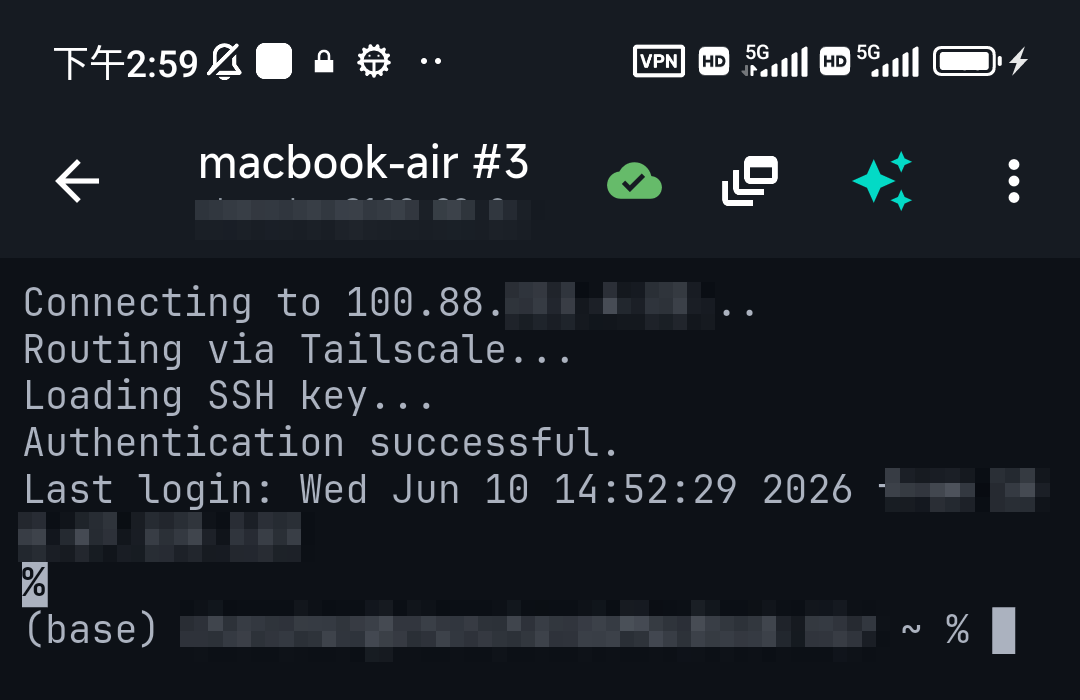
On iPhone, iPad, or Android there's no ssh-copy-id command to run and no easy way to pipe a file over SSH — mobile OSes don't give you a shell with your key files in it. A good mobile client does the same job for you: TermAI generates an Ed25519 key inside the device Keychain and has a deploy-to-server action that writes the public half into authorized_keys over a login you already have. Same three steps as the script — connect, append, fix permissions — as one tap. After that you connect with the key and never type the password again.
The private key stays in the Keychain and is never exported, which is the mobile version of the guarantee ssh-copy-id gives you on a laptop.
When ssh-copy-id can't log in at all
ssh-copy-id needs a working login to get in and append the key. On most cloud images there isn't one: AWS, DigitalOcean, Hetzner, Oracle Cloud and friends ship with PasswordAuthentication no and a key already installed, so a plain ssh-copy-id dies with Permission denied (publickey) before it copies anything. Three ways out, in order of how much access you still have.
You have a working key and want to add another. Authenticate with the old key while installing the new one:
ssh-copy-id -i ~/.ssh/new_key.pub -o "IdentityFile=~/.ssh/old_key" user@host-i chooses the key to install; -o IdentityFile= chooses the key to authenticate with. Without the second one, -i makes ssh offer the not-yet-installed key and the connection is refused. Add -f if the already-installed check gets in the way. The plain-ssh equivalent, which is sometimes easier to reason about:
cat ~/.ssh/new_key.pub | ssh -i ~/.ssh/old_key user@host "umask 077; mkdir -p ~/.ssh; cat >> ~/.ssh/authorized_keys"You have no working key. Use the path outside SSH: the provider's web console or serial console (then paste the key), EC2 Instance Connect, a rescue/recovery boot with the disk mounted, or the provider's "add SSH key" field plus a rebuild. Some panels also let you reset the root password and temporarily flip PasswordAuthentication yes.
You're trying to copy a key for root. Most distros ship PermitRootLogin prohibit-password, so ssh-copy-id root@host can't authenticate with a password even when passwords are otherwise enabled. Install the key for your normal user, log in, and copy it into root's file from there — sudo mkdir -p /root/.ssh && sudo tee -a /root/.ssh/authorized_keys, then sudo chmod 700 /root/.ssh && sudo chmod 600 /root/.ssh/authorized_keys. A key pasted while you're sudo-ed lands in /root/.ssh/authorized_keys, which does nothing for ubuntu@host — that mix-up is a classic.
Verify it worked
Reconnect — you shouldn't be asked for a password. Don't take that as proof on its own, though: a password prompt that you type through hides the failure. Force key-only auth so a failure is an error instead of a prompt:
ssh -o PreferredAuthentications=publickey -o IdentitiesOnly=yes -i ~/.ssh/id_ed25519 user@hostIf that logs you in, the key is genuinely installed and being used. To see it happen, add -v and look for Server accepts key. To prove the server holds the same key you're offering, compare fingerprints — on your machine ssh-keygen -lf ~/.ssh/id_ed25519.pub, on the server ssh-keygen -lf ~/.ssh/authorized_keys; the SHA256:… string must appear in both lists.
Still being asked for a password? See SSH still asking for a password for the six usual causes (permissions, wrong user, sshd config…).
Optional: turn password logins off afterwards
Copying the key is what makes this possible; it isn't what makes the server safer. That happens when passwords stop being accepted. Keep your current session open while you do this, so a mistake doesn't lock you out. On the server:
sudo nano /etc/ssh/sshd_config

PubkeyAuthentication yes
PasswordAuthentication no
KbdInteractiveAuthentication no
The third line is the one people miss — on Debian/Ubuntu, keyboard-interactive auth can still hand you a password prompt through PAM after you've turned PasswordAuthentication off.
Bigger trap on modern cloud images: Ubuntu 22.04+ and Debian 12 start sshd_config with Include /etc/ssh/sshd_config.d/*.conf, and in sshd config the first value found for a keyword wins. Cloud images ship /etc/ssh/sshd_config.d/50-cloud-init.conf containing PasswordAuthentication yes — read before your edit, so your edit does nothing. Put your setting in a drop-in that sorts earlier (e.g. 01-nopassword.conf), or remove the cloud-init file. Then check the effective config rather than the file you edited:
sudo sshd -t                                       # syntax check — do this first
sudo sshd -T | grep -iE 'passwordauth|kbdinteractive|pubkeyauth'
sudo systemctl restart ssh                         # 'sshd' on RHEL/Fedora
Open a second terminal and log in before closing the first. More on the trade-off in SSH keys vs passwords.
When ssh-copy-id fails: error → fix
| What you see | What it means | Fix |
|---|---|---|
ssh-copy-id: command not found | Windows, or a minimal image without the client package | PowerShell one-liner, Git Bash/WSL, or install openssh-client |
ERROR: No identities found | No .pub file where it looked, or a non-default filename | ssh-keygen -t ed25519 first, or point at the key: ssh-copy-id -i ~/.ssh/mykey.pub … |
WARNING: All keys were skipped because they already exist on the remote system | The key is already installed — usually good news | Nothing. If you really want a second copy, use -f |
Permission denied (publickey) | Password auth is off, so it can't get in to copy anything | Install over an existing key or use the provider console |
Permission denied, please try again | Wrong password, or wrong username for that image | Cloud images use ubuntu, ec2-user, debian, admin — not root |
| Copies fine, still prompts for a password | sshd is ignoring the file: permissions, wrong user, or a mangled line | chmod 700 ~/.ssh, chmod 600 ~/.ssh/authorized_keys, home not group-writable — then the six causes |
| Key is in the file but never accepted | CRLF line endings or a wrapped paste | cat -A shows ^M → dos2unix; ssh-keygen -lf authorized_keys errors on corrupt lines |
Connection refused / Connection timed out | Not a key problem at all — sshd, port, or firewall | Connection refused |
| Hangs or fails on a locked-down host | The server restricts remote commands | ssh-copy-id -s user@host to install over SFTP instead |
Too many authentication failures | Your agent offered a dozen keys before the right one; MaxAuthTries (default 6) cut you off | ssh-copy-id -o IdentitiesOnly=yes -i ~/.ssh/thekey.pub user@host |
FAQ
How do I copy my SSH key to a server?
Run ssh-copy-id user@host (Linux/macOS/WSL/Git Bash). On Windows PowerShell or restricted setups, append your .pub file to the server's ~/.ssh/authorized_keys manually. On mobile, use a client like TermAI that deploys the key in one tap.
What does ssh-copy-id actually do?
It logs in with your password once and appends your public key to ~/.ssh/authorized_keys, creating ~/.ssh with a 077 umask so the permissions are right. Your private key never leaves your machine.
Where is authorized_keys?
In the home directory of the user you log in as: ~/.ssh/authorized_keys on the server. It must be mode 600, inside a 700 .ssh directory, in a home directory that isn't group- or world-writable. On a Windows server with an admin account it's C:\ProgramData\ssh\administrators_authorized_keys instead.
ssh-copy-id isn't found — what do I use?
It's not on Windows and not in some minimal images. Either install the client package (apt install openssh-client, apk add openssh-client), run it from Git Bash or WSL, or pipe the key manually: cat key.pub | ssh user@host "umask 077; mkdir -p ~/.ssh; cat >> ~/.ssh/authorized_keys".
What's the ssh-copy-id equivalent on Windows?
There's no built-in command — Microsoft's OpenSSH port ships ssh, ssh-keygen and scp but not the ssh-copy-id script. Use the PowerShell one-liner, or run the real ssh-copy-id from Git Bash or WSL, both of which include it.
How do I use ssh-copy-id on a different port?ssh-copy-id -p 2222 user@host — lowercase -p, like ssh and unlike scp's -P. If the host is defined in ~/.ssh/config with a Port line, ssh-copy-id hostalias picks it up automatically.
How do I copy a specific key instead of the default?ssh-copy-id -i ~/.ssh/mykey.pub user@host. Without -i it uses the keys in your ssh-agent, falling back to the newest ~/.ssh/id*.pub — which is not always the one you meant. Run ssh-copy-id -n user@host first to see what it would install.
ssh-copy-id says "Permission denied (publickey)" — why?
The server has password authentication disabled (standard on AWS, DigitalOcean, Hetzner, Oracle images), so there's no way for the script to log in and append anything. Install the new key over a key that already works: ssh-copy-id -i ~/.ssh/new.pub -o "IdentityFile=~/.ssh/old" user@host. With no working key at all, go through the provider's console.
Is it safe? Does ssh-copy-id send my private key?
No. Only the .pub file is transmitted, and a public key is meant to be public — it's safe in an email or a ticket. The risky file is the one without .pub; that never leaves your device. The one thing to check is that you're copying to the host you think you are: the fingerprint prompt on first connect is your only defence against a man-in-the-middle at that moment.
Can I run ssh-copy-id non-interactively with the password?
Technically yes, with sshpass -p 'pw' ssh-copy-id user@host, and it's common in throwaway lab automation. It puts the plaintext password in your shell history, in ps output, and possibly in CI logs. For real automation, bake the key in at provisioning time instead — cloud-init ssh_authorized_keys, a provider key field, or your config-management tool's authorized_key module.
Can I have more than one key in authorized_keys?
Yes — one key per line, as many as you like. That's how you add a laptop, a phone, and a CI runner to the same account. Any of them logs in; you can revoke one by deleting its line.
How do I remove a key from a server?
Edit ~/.ssh/authorized_keys and delete that key's line. Identify which line is which by fingerprint: ssh-keygen -lf ~/.ssh/authorized_keys lists them in file order, with the comment at the end of each key (usually you@laptop) as a hint.
Do I need to run ssh-copy-id again for each server?
Yes — authorized_keys is per server and per user account. The same public key can go on as many servers as you like; loop over them: for h in web1 web2 db1; do ssh-copy-id "$h"; done.
Does macOS have ssh-copy-id?
Recent macOS versions ship it at /usr/bin/ssh-copy-id. Check with command -v ssh-copy-id; if it comes back empty on an older system, either brew install ssh-copy-id or use the manual one-liner, which needs nothing installed.
Can I run ssh-copy-id from an iPhone or Android?
Not as a command — mobile OSes give you no shell with your key files in it. The equivalent is a client that deploys its own key for you: in TermAI you tap deploy-to-server on a connection that already works, and the app appends its public key to authorized_keys, exactly as the script would.
What's the difference between ssh-copy-id and ssh-keygen?ssh-keygen creates the key pair on your machine; ssh-copy-id installs the public half on a server. Generating a key sends nothing anywhere, which is why a fresh id_ed25519.pub sitting in ~/.ssh still leaves you typing a password.
Quick Facts
- Goal: your public key as one line in the server's
~/.ssh/authorized_keys, for the user you log in as - Easiest:
ssh-copy-id user@host(Linux/macOS/WSL/Git Bash) - Non-standard port:
ssh-copy-id -p 2222 user@host— lowercase-p - Windows: no such command — pipe the
.pubfile in PowerShell (strip CR withtr -d), or use Git Bash/WSL - Manual anywhere:
cat key.pub | ssh user@host "umask 077; mkdir -p ~/.ssh; cat >> ~/.ssh/authorized_keys" - Password auth off? Install over an existing key:
-i new.pub -o IdentityFile=~/.ssh/old - Windows target, admin account:
C:\ProgramData\ssh\administrators_authorized_keys, ACL limited to SYSTEM + Administrators - Mobile: one-tap deploy (TermAI) — same result as ssh-copy-id
- Only the public key is copied; the private key stays on your device
- Verify:
ssh -o PreferredAuthentications=publickey -i ~/.ssh/id_ed25519 user@host
Free on iOS and Android. 5 AI requests/day on the free tier, plus unlimited SSH/SFTP and built-in Tailscale.