SSH from your iPhone to a Mac (or any server)
You can SSH from an iPhone to your Mac — or to any remote server — once two things are true: SSH is enabled on the target, and you have its address. For a Mac, that means turning on Remote Login; for a Linux server it's already running. Then you connect from an iPhone SSH client with the address, your username, and a password or key. This guide covers the Mac case in detail and the general server case alongside it.
Step 1 — Turn on Remote Login on the Mac
macOS has an SSH server built in; it's just off by default. Enable it:
- Open System Settings → General → Sharing.
- Turn on Remote Login.
- Note the line it shows:
ssh username@your-macs-name.local— that's exactly what you'll connect with.
(For a Linux server, skip this — sshd is typically already running. See how to SSH from your iPhone for the general flow.)
Step 2 — Find the address and username
- Username: your Mac account's short name (what
whoamiprints in Terminal). - Address: the
name.localshown under Remote Login, or the Mac's local IP — System Settings → Wi-Fi → Details, or runipconfig getifaddr en0in Terminal. It'll look like192.168.1.30.
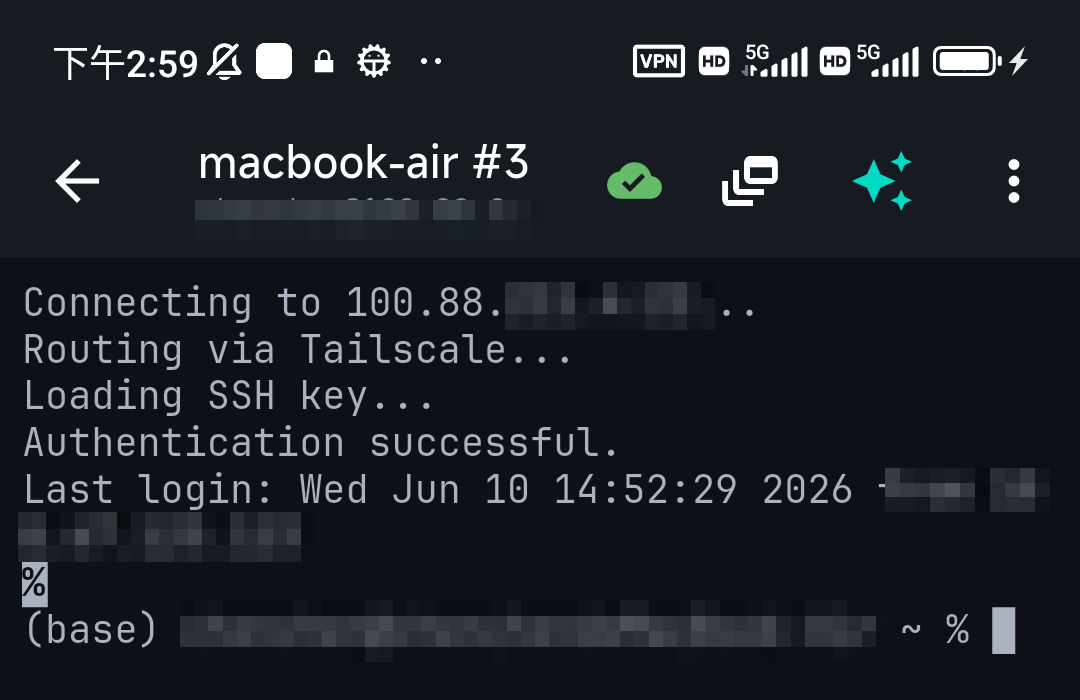
Step 3 — Connect from the iPhone
In an iPhone SSH client (see the best SSH client for iPhone), add a connection:
- Host: the Mac's
name.localor IP - Port: 22
- Username: your Mac short name
- Auth: your Mac login password, or an SSH key
Accept the host key fingerprint the first time, and you're at a shell on your Mac.
Step 4 — Use a key (recommended)
Once password login works, switch to an SSH key: more secure and no password to type. Generate the key on the iPhone and add its public key to ~/.ssh/authorized_keys on the Mac (TermAI can deploy it for you). See SSH keys vs passwords.
Don't remember a command? Ask
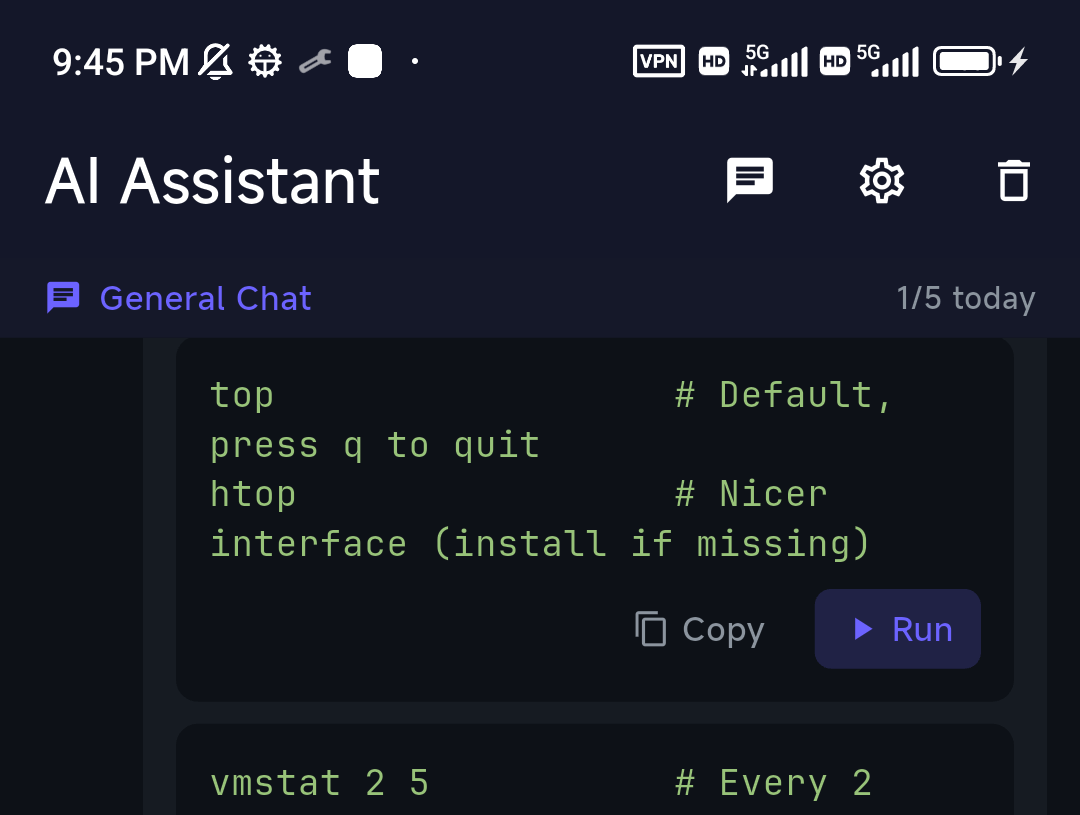
Once you're on the Mac, the assistant can help with the macOS-specific commands you forget — launchctl, pmset, diskutil. Describe what you want to TermAI and review the suggested command before running it; it's grounded in the machine you're on, so it gives Mac commands, not Linux ones.
Reaching the Mac (or server) when you're away
The .local address and local IP only work on the same network. To reach your Mac or server from cellular, don't forward SSH to the internet — install Tailscale on both (or use TermAI's built-in Tailscale) and connect to its private address from anywhere. See Tailscale on iPhone.
FAQ
How do I SSH into my Mac from my iPhone?
Turn on Remote Login (System Settings → General → Sharing), then connect from an iPhone SSH client using the Mac's name.local or IP, your account short name, and your password or a key.
What's the username for SSH into a Mac?
Your macOS account's short name — the same one whoami prints in Terminal.
Can I SSH to my Mac from anywhere?
Yes, without exposing it: put the Mac and your phone on a Tailscale network and connect to the Mac's private address. Don't forward port 22 to the internet.
Quick Facts
- Enable on Mac: System Settings → General → Sharing → Remote Login
- Connect: iPhone SSH client →
name.local/IP, port 22, your short name, key - Username: your macOS account short name (
whoami) - Remote: use Tailscale, not port forwarding
Free on iOS and Android. 5 AI requests/day on the free tier, plus unlimited SSH/SFTP and built-in Tailscale.